Calendar Views
Calendar Views
The calendar is the shape of your time.
It shows what is scheduled and where. It does not tell you what to do, and it does not judge what you have chosen. It simply holds your plans in front of you, in six different resolutions, and lets you move between them.
Six ways to see time
The calendar can be viewed at six scales, from a single hour to a whole year. Each is a different answer to the question what is my time doing?
- Week — the default view. Seven days, one column each, hours down the side.
- Day — one day, in detail, hour by hour. Every session expanded.
- Hour — one hour, as a carousel of cards. Every session visible in full.
- Month — the whole month as a grid, sessions compressed to pills.
- Year — twelve months at a glance, as a density map.
- Task — not a view of time at all, but a single task opened in full.
The view switcher sits at the top of the calendar. Click any of the first four to switch. The other two are reached by clicking a session or a month, respectively.
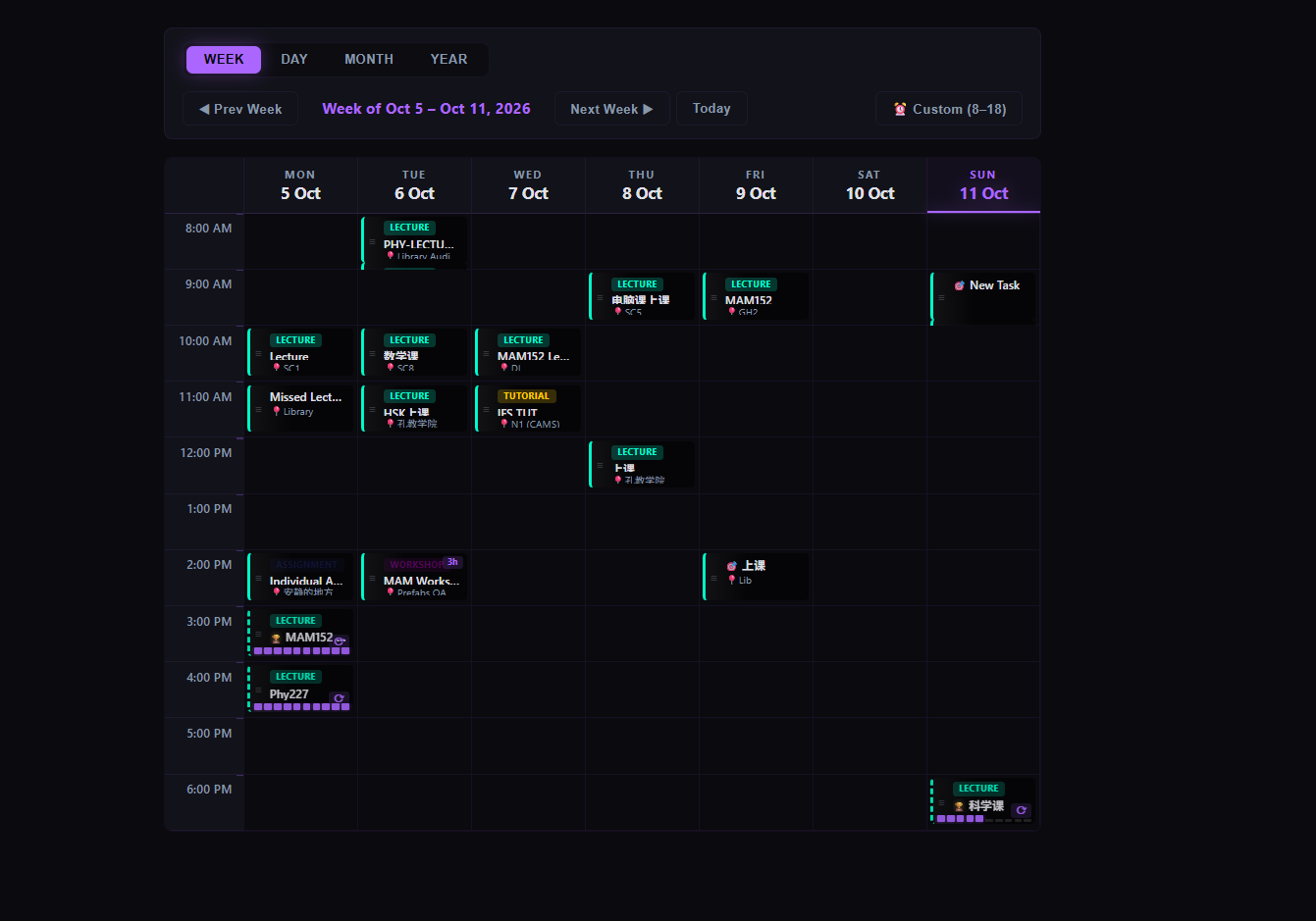
The Week view
The Week view is where most planning happens.
Seven columns, Monday through Sunday. Each row is an hour of the day. Sessions appear as coloured pills inside the cell they occupy — a lecture at 10am on Tuesday appears in the Tuesday column, in the 10am row.
A pill shows a title, a venue (if set), and a type badge. Multi-hour sessions render taller than one-hour sessions, spanning down through the rows they occupy. Sessions that continue past the visible range show a small continuation marker.
The Week view respects your chosen hour range. If you would rather not see the small hours of the morning, you can restrict the display to a preset range — full day, working hours, morning, afternoon, evening, or a custom range of your own choosing. The range preference is remembered across sessions.
The Day view
The Day view expands a single day into full detail.
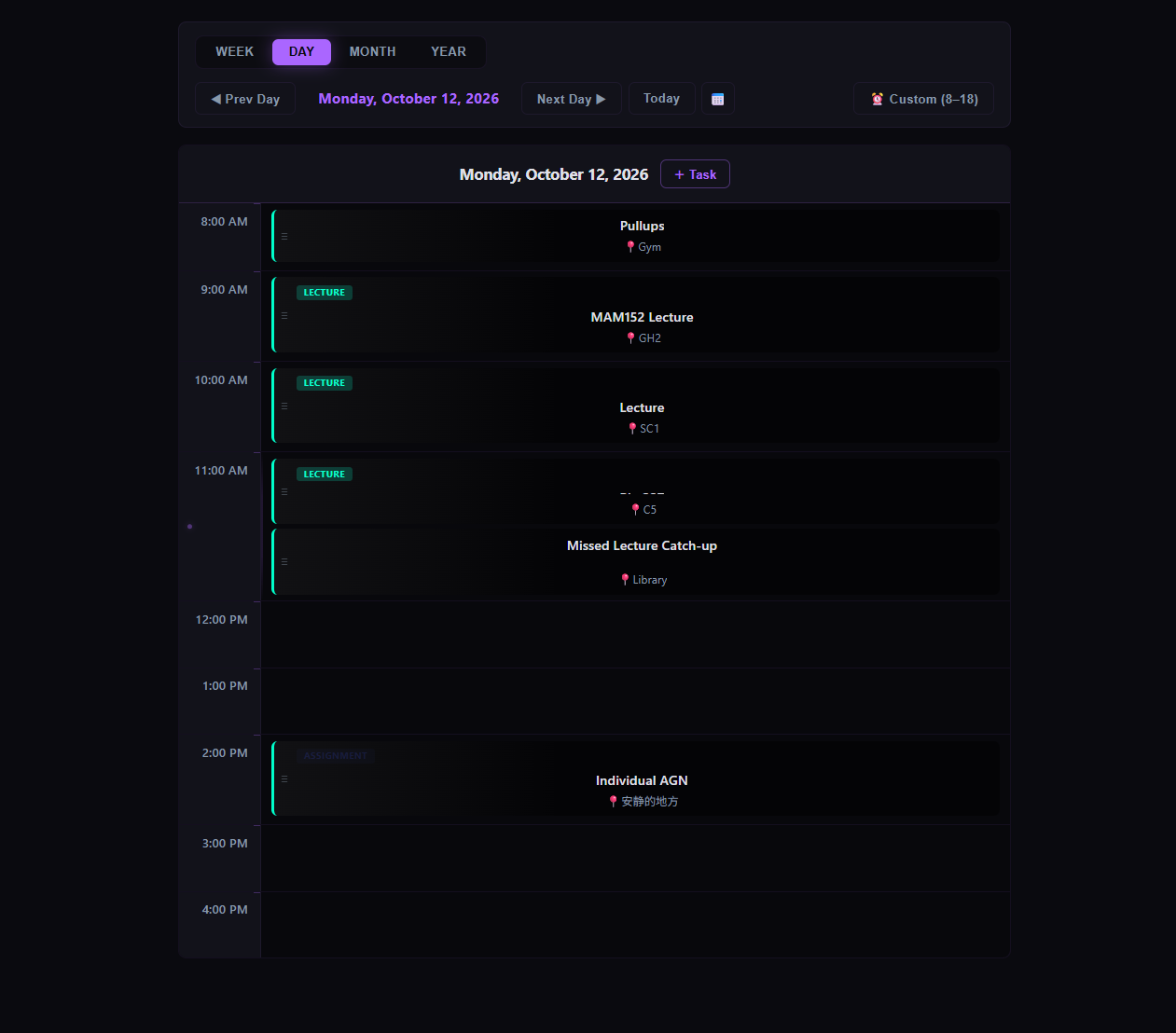
Each hour of the day becomes a row. Sessions are rendered as full-width pills with their title, venue, type badge, and duration visible. A + Task button at the top of the view lets you add a one-off task directly to the day without leaving the calendar.
Sessions that overlap in the same hour stack vertically within their row. A small visual marker appears on the hour label to indicate that more than one session occupies that hour — a subtle cue that there is more to see than the pill alone suggests.
The Hour view
The Hour view zooms in on one hour and shows everything in it as a carousel of cards.
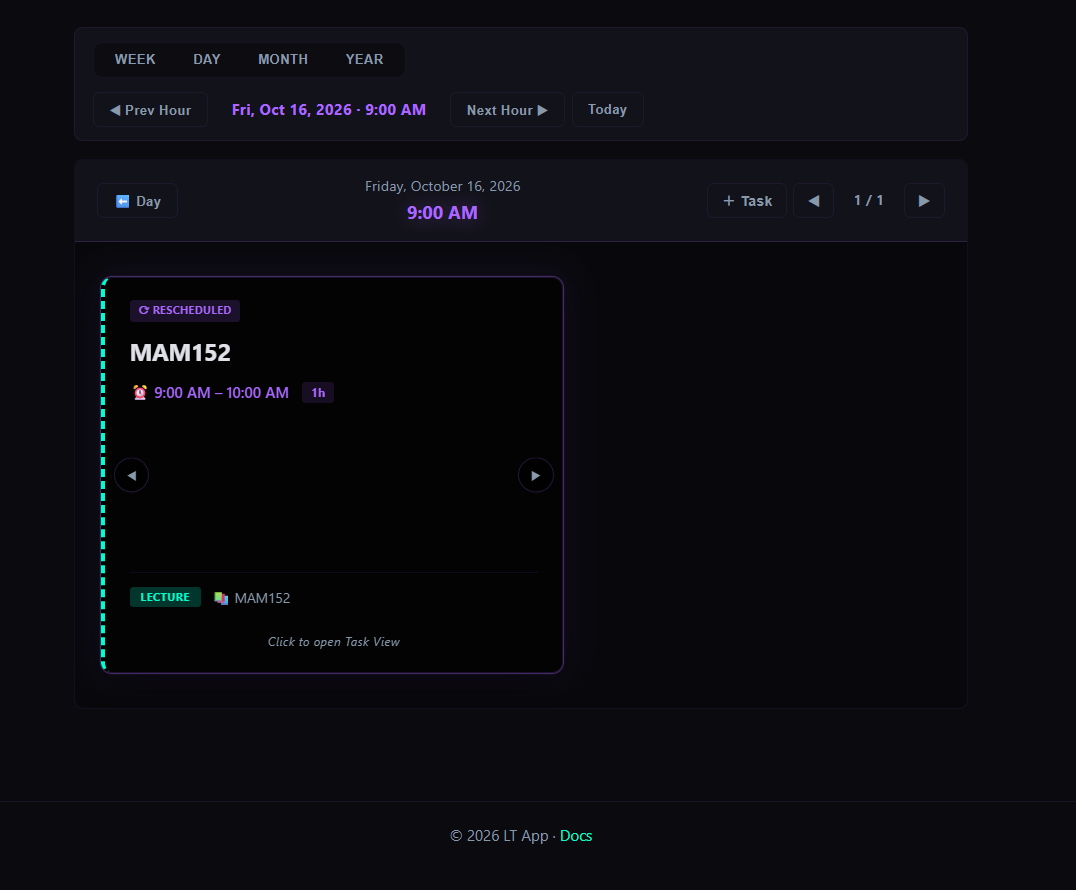
Each card is one session, expanded to show its title, time range, venue, subject, and type. Cards can be navigated with the arrows or the keyboard. Clicking the centre of a card opens the task in full.
The Hour view is reached by clicking an hour cell in the Week or Day view. It is a natural stopping point when a specific hour deserves your full attention — a review session, a meeting, a deep work block.
The Month view
The Month view compresses the whole month into a grid.
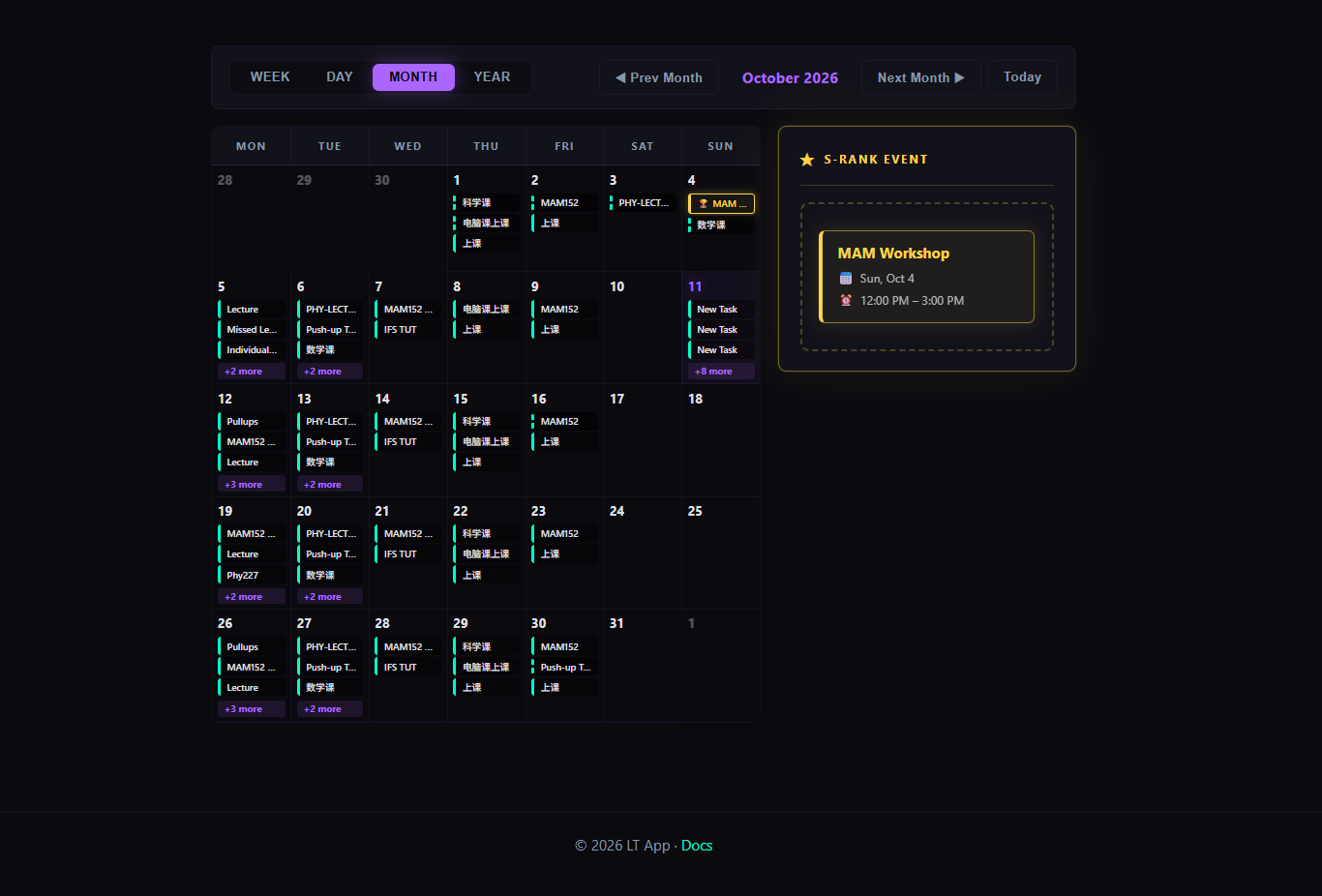
Each cell is one day. Sessions appear as small pills, with the number of pills per day capped to keep the grid legible. When there are more sessions than fit, a +N more badge appears at the bottom of the cell — click it to see the full list for that day.
On the right side of the Month view sits the S-Rank panel. Once a month, you can drag any session onto this panel to promote it to S-Rank — a distinction marking it as the event that mattered most. The panel shows the current month's S-Rank, or a quiet prompt if none has been set.
The Month view is where the month's shape becomes visible. A week is too short and a year is too broad. The month is the natural unit for looking at what you did.
The Year view
The Year view reduces a full year to a density map.
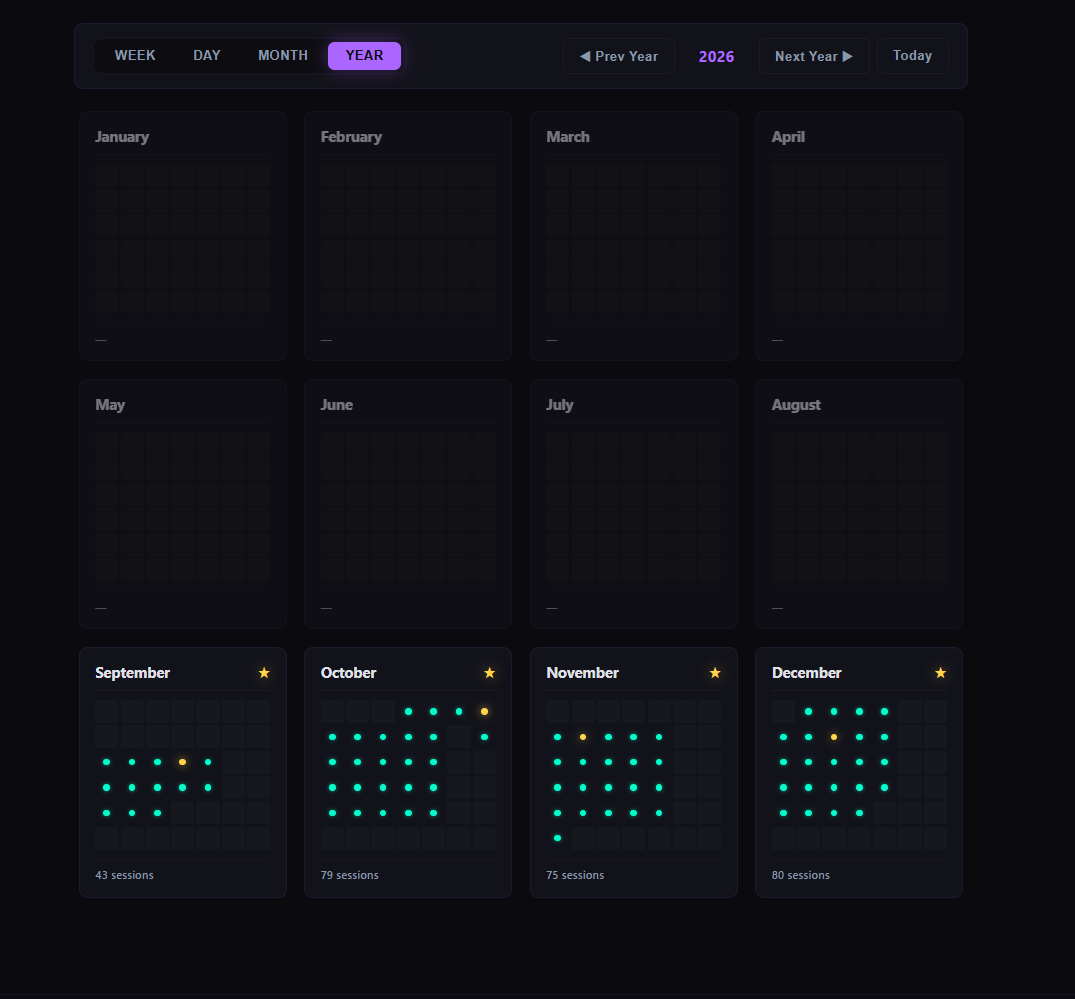
Twelve panels, one per month. Each panel contains a small grid of days. Days with activity show a coloured dot; days without remain empty. The result is not a schedule — it is a footprint. You can see, at a glance, which months were busy and which were quiet.
A small star appears in the corner of a month that had an S-Rank event. The session count for each month appears at the bottom of the panel.
The Year view is not for planning. It is for looking back. A year is a long time, and the shape of a year is not obvious from a single week or month. The density map makes it visible.
The Task view
The Task view is not a calendar at all — it is a single task opened for full inspection.
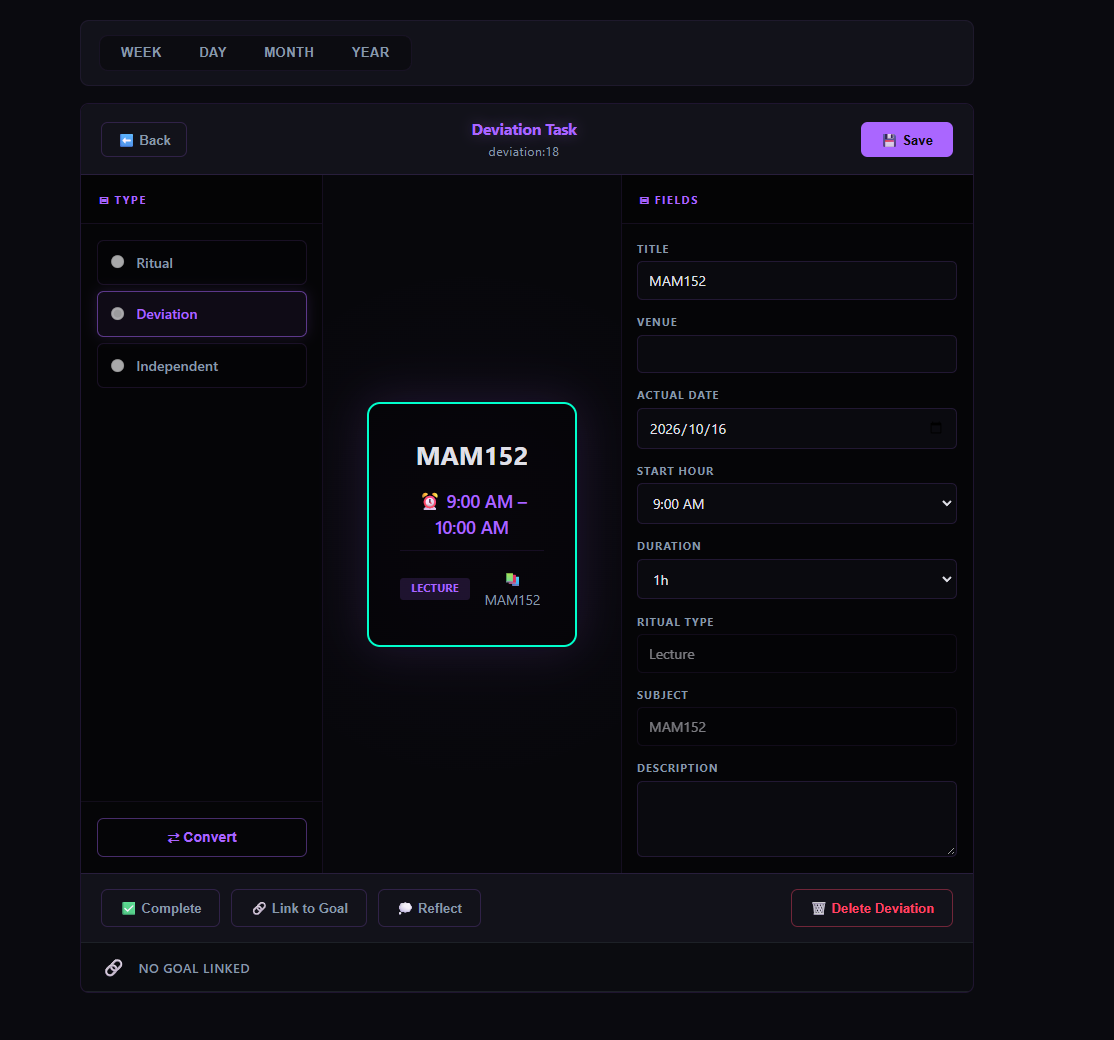
The task appears in a three-column layout. On the left, its type — Ritual, Deviation, or Independent — and the option to convert between them. In the centre, a preview of how the task appears on the calendar. On the right, editable fields — title, venue, date, time, duration, and description.
Actions sit at the bottom: complete the task, link it to a goal, reflect on it, or delete it. A task in the Task view is the same task that appears on the calendar — the view is simply a way of seeing everything about it in one place.
Navigating between views
Moving between views is deliberately fluid.
- From the Week view, click any hour cell to open the Hour view for that hour.
- From the Hour view, click the
⬅ Daybutton to return to the Day view. - From the Day view, click a session to open it in the Task view.
- From the Month view, click any day to open the Day view for that day.
- From the Year view, click any month panel to open the Month view for that month.
There is no "right" view. The calendar is designed to let you move to whatever scale is currently useful, without losing context about what you were looking at.
> The calendar does not tell you what to do with your time. It shows you what you have decided. The rest is yours.